Create a SmarterContact campaign by selecting a contact group, choosing message templates, and configuring delivery settings. This guide walks through the full process from file selection to launch.
Step-by-Step Instructions
1. Navigate to Groups
Go to app.smartercontact.com/contacts/groups to see all your uploaded contact groups.
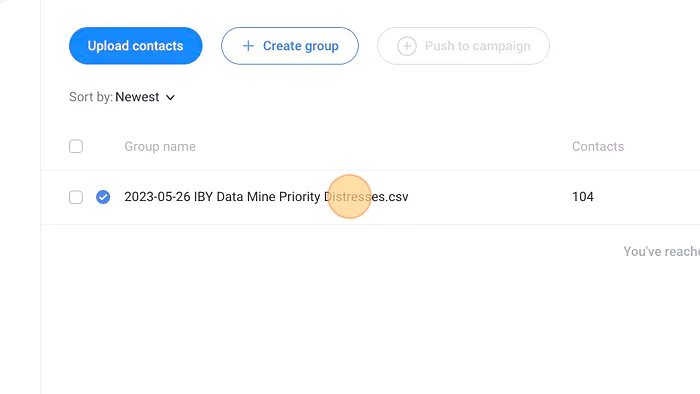
2. Select Your Contact Group
Click the file you want to campaign from.
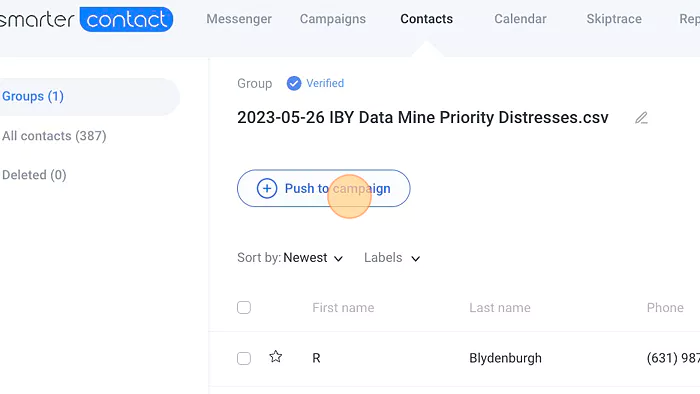
3. Push Contacts to Campaign
Click the "Push to campaign" button.
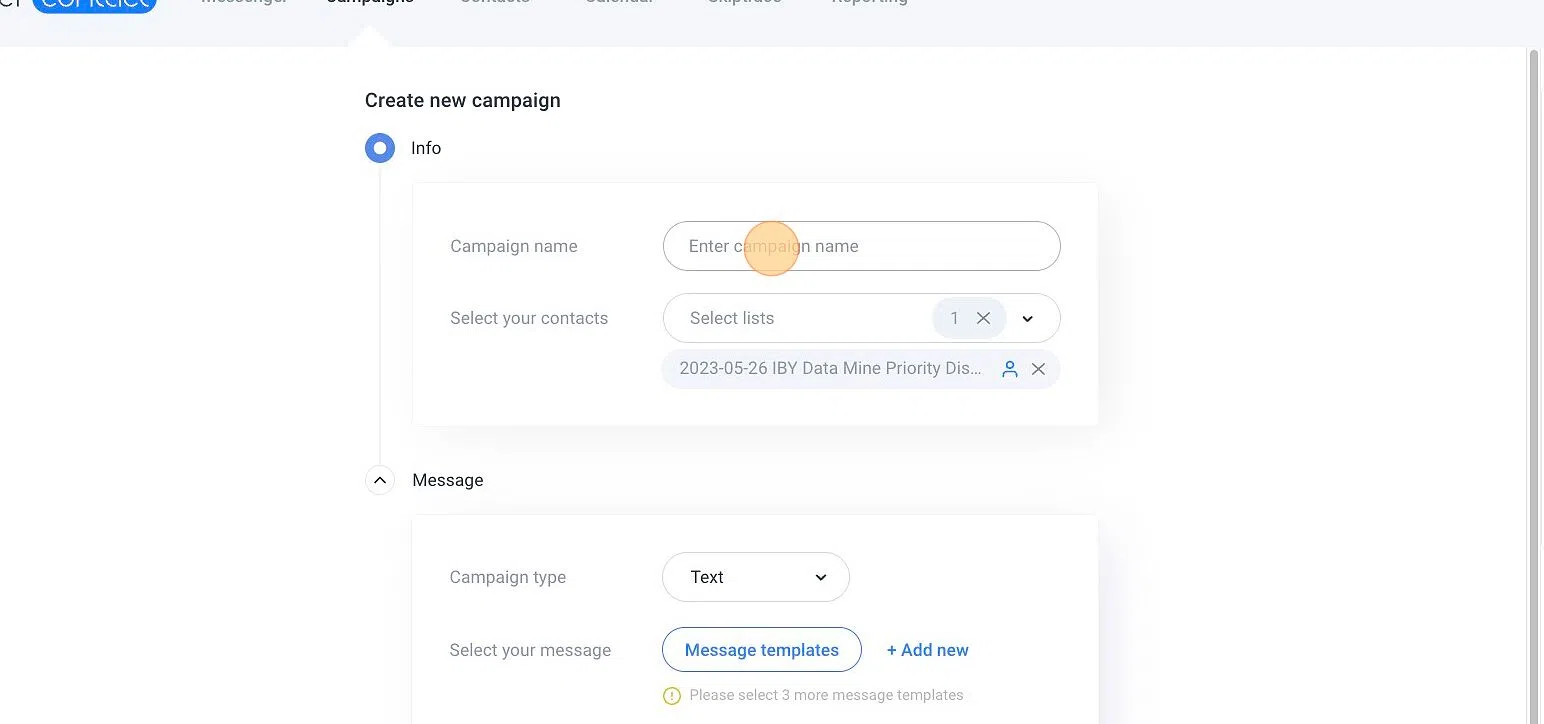
4. Name and Configure
- Enter a campaign name.
- Click "Text" to define your communication type.
- Click "Message templates" to choose pre-built messages.
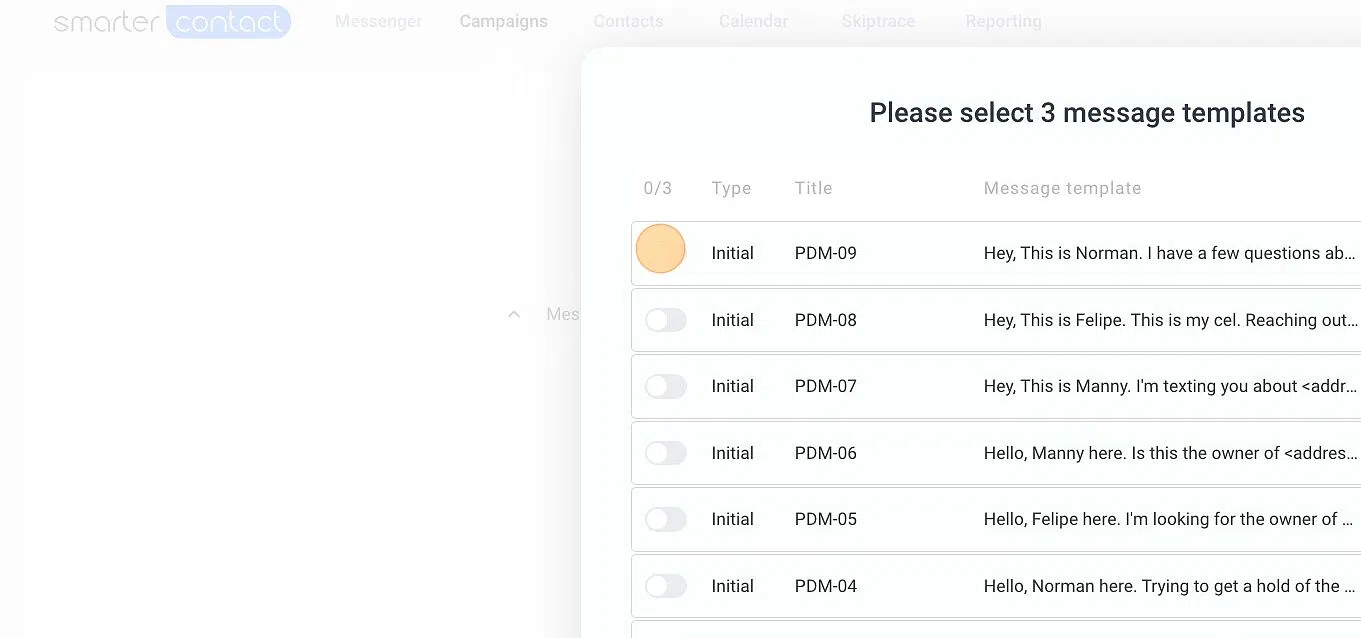
5. Select Message Templates
Choose one or more templates that follow best practices for your outreach.
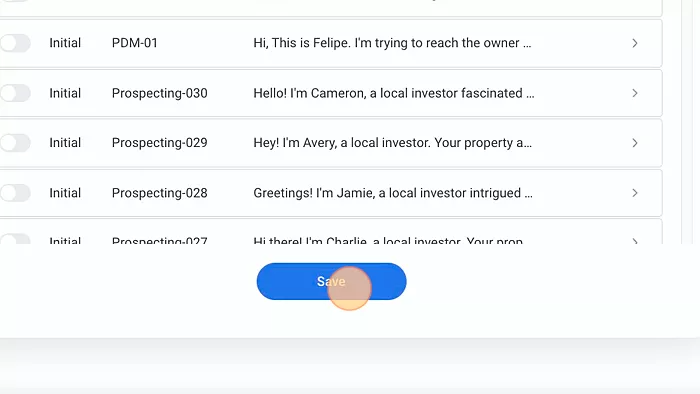
6. Save Templates
Click "Save" to confirm your template selections.
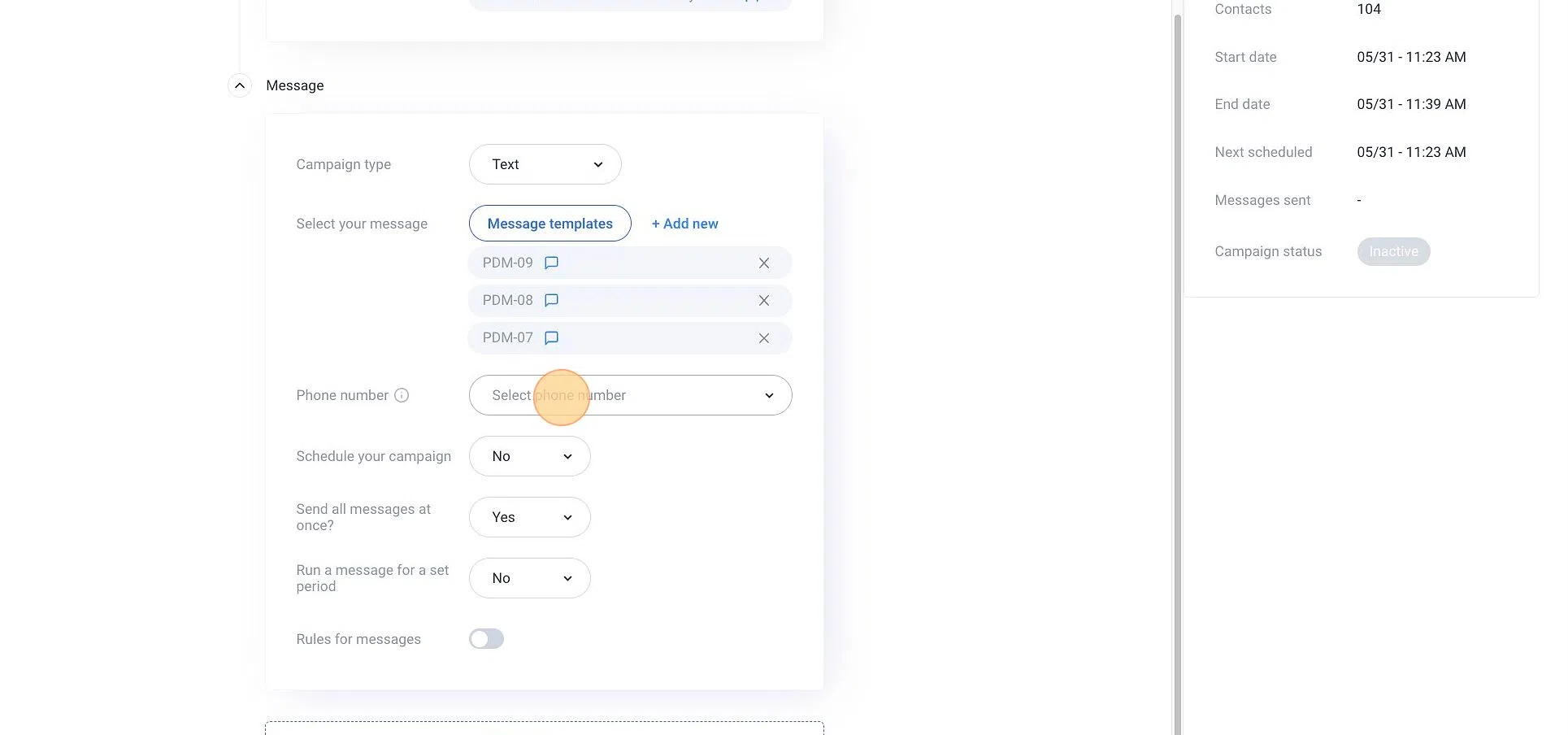
7. Choose Campaign Settings
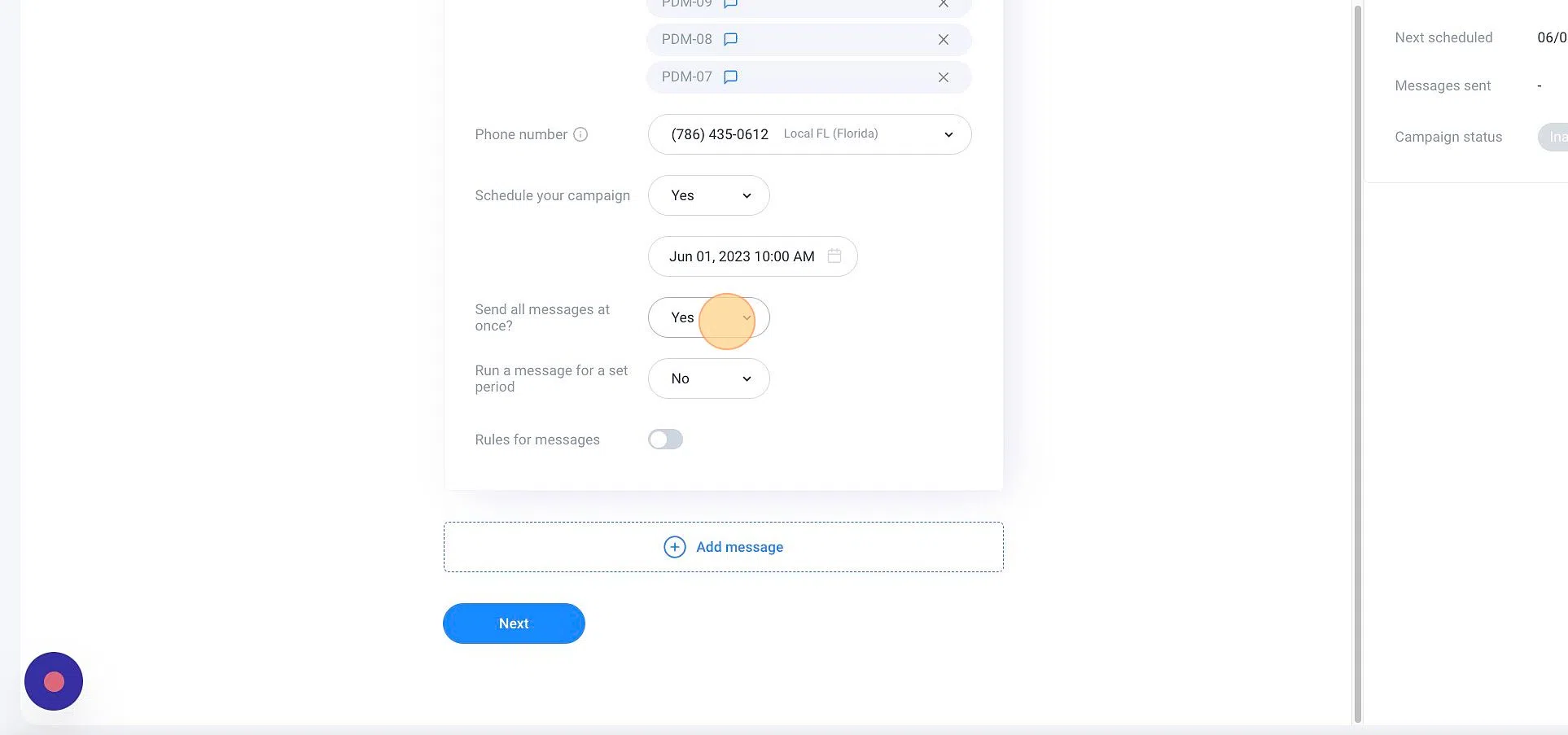
Configure sending options, schedule, and delivery preferences.
8. Launch
Review your campaign summary and click "Next" to proceed.
Video Walkthrough
Need Help?
For campaign setup or template customization help, email support@8020rei.com.